🛜Why Cranking Up Your WiFi Router’s Power Causes More Problems Than It Solves📶
Discover Why Increasing Your WiFi Router's Power Can Cause Connection Issues
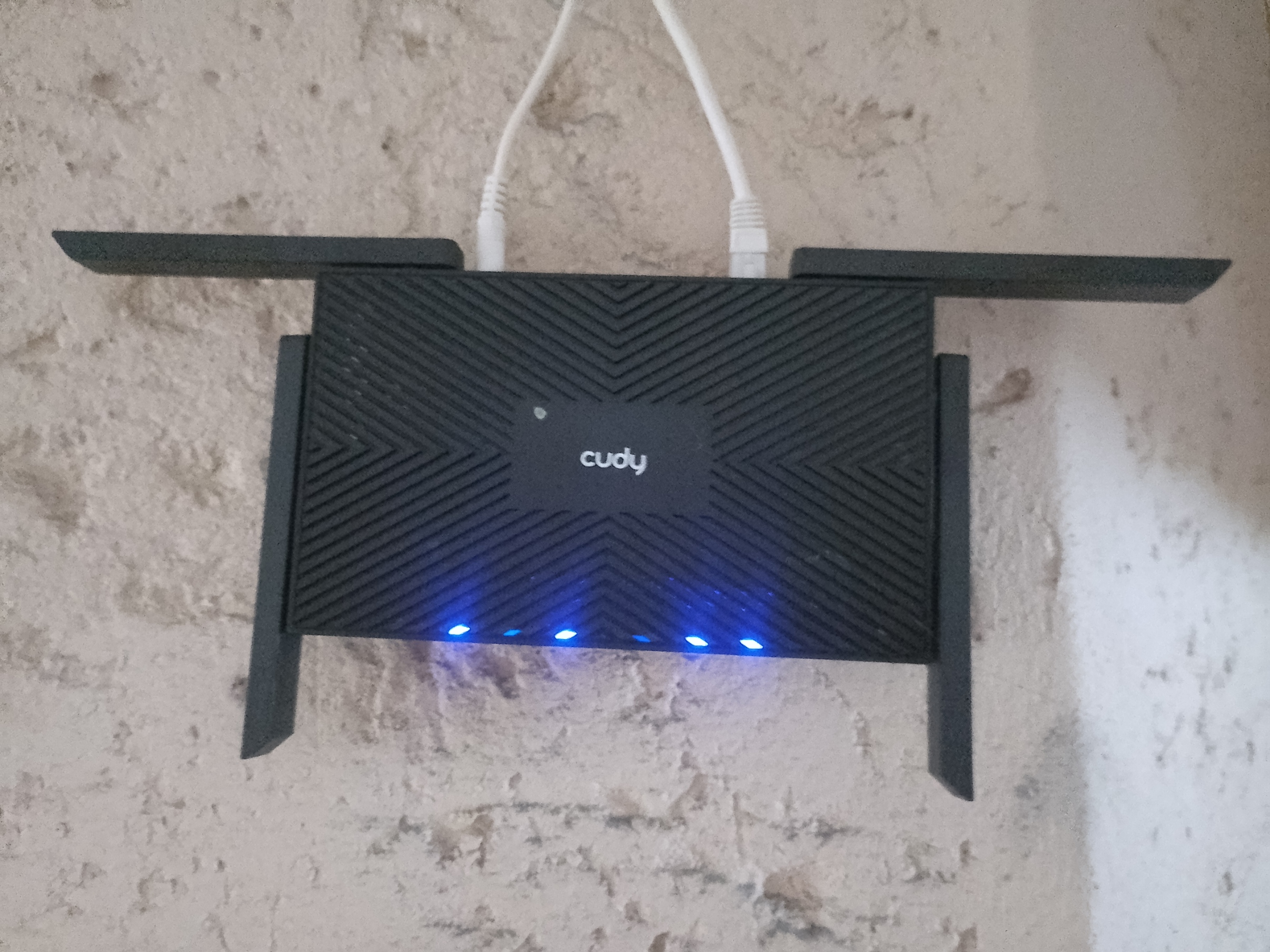
It’s a common misconception: “If my WiFi signal is weak, I’ll just crank up the power on my router!” Sounds logical, right? Unfortunately, blasting your WiFi router at maximum transmit power often leads to more interference, connection instability, and performance issues rather than an improvement.
In this article, we’ll explore how WiFi transmit power influences interference, why higher power doesn’t mean better coverage, and what best practices you should follow for a stable, high-performance wireless network.
The Problem with High WiFi Transmit Power
WiFi routers and access points (APs) communicate using radio waves, which are affected by interference, signal reflection, and even walls. Increasing your router’s transmit power (Tx power) seems like a good way to improve coverage, but it often backfires. Here’s why:
1. More Power = More Interference
When you crank up your router’s power:
✅ Your device may see a stronger signal, but
❌ Your router starts interfering with nearby WiFi networks, including your own!
WiFi operates on shared frequencies (2.4 GHz and 5 GHz). If every router in a neighbourhood blasts at maximum power, they start overlapping, causing congestion, packet loss, and higher latency.
In dense environments (apartments, office buildings), low-to-moderate power levels help reduce interference and allow networks to co-exist smoothly.
2. One-Way Communication Problem (Hidden Node Issue)
Your router might scream loudly at your devices, but if your phone, laptop, or IoT device has a weaker antenna, it can’t reply with the same strength.
📡 High power on your router ≠ High power on your device
This creates a one-way communication problem:
Your device hears the router loud and clear
But the router struggles to hear your device’s weak response
This results in slow speeds, frequent disconnects, and increased retries, making your WiFi unreliable.
3. High Power Creates More Noise, Not More Coverage
Many think that boosting power extends range—but in reality, it just increases signal noise.
🔊 Imagine a crowded room where everyone is shouting louder to be heard. Instead of making communication clearer, it just creates more chaos.
When multiple high-powered routers overlap, they interfere with each other, reducing network efficiency rather than improving it.
💡 Solution? Instead of one powerful router, deploy multiple low-power access points with proper placement.
Best Practices for WiFi Deployment
Instead of maxing out your router’s power, here’s what you should do for a balanced, high-performance WiFi setup:
1. Reduce Transmit Power to Match Device Capabilities
📉 Set your WiFi power to a reasonable level (typically 14–20 dBm for 2.4 GHz, and 17–23 dBm for 5 GHz).
✅ This ensures a balanced two-way connection between your router and devices.
2. Use 5 GHz More Than 2.4 GHz
5 GHz offers higher speeds and less interference.
2.4 GHz should be used only for older devices or long-range coverage.
In a home or office, prioritize 5 GHz WiFi and limit 2.4 GHz power levels to avoid unnecessary interference.
3. Deploy Multiple Access Points Instead of One High-Powered Router
📡 One big router isn’t always the best solution!
If you need to cover a large area, use multiple access points (APs) with lower power instead of one high-powered router.
Place them strategically to ensure good coverage without overlap.
For large homes or offices, mesh WiFi systems or enterprise-grade APs like Ubiquiti, Aruba, or Cisco provide seamless roaming and better performance.
4. Use Non-Overlapping Channels
WiFi operates on channels—choosing the right one minimizes interference:
2.4 GHz: Use channels 1, 6, or 11 (they don’t overlap).
5 GHz: Use automatic DFS (Dynamic Frequency Selection) to avoid congestion.
If you have multiple APs, ensure they are on different channels to prevent self-interference.
5. Test and Optimise Using WiFi Tools
Use tools like:
📊 NetSpot, WiFi Analyzer (Android), or Ekahau to check your WiFi signal strength and interference levels.
🛠️ Adjust power settings dynamically to ensure stable connections without unnecessary interference.
Wrapping Up
Boosting your router’s power to maximum levels might seem like a quick fix, but it often creates more problems than it solves. The best approach is optimised power settings, proper channel selection, and deploying multiple access points where needed.
If you’re struggling with weak WiFi, don’t just increase power—assess your network, reduce interference, and place your APs strategically. That’s the real way to get fast, reliable, and interference-free WiFi! 🚀
About the author
Driving SD-WAN Adoption in South Africa
Comments
Join the discussionNo comments yet. Be the first to comment.


